Avatar Authoring - Body Motion
In kemorig, all tracked motion that moves the skeleton of your model is refered to as body motion.
All body motion is applied within the Kemorig Tracking node inside your Animation Blueprint’s Anim Graph.
How Body Motion Works
Using Webcam or ARKit Tracking, kemorig tracks the position and rotation of your head to perform body motion.
- Your real life head motion is extrapolated to motion down your Avatar’s body.
- By default, this motion is tuned to look good for standing Avatars.
You can animate your character using Unreal’s animation tools in any way you like, and body motion will be smoothly layered on top.
Bone Mappings in the Kemorig Tracking Node
For body motion to work, your model’s bones have to be mapped to body parts within the Kemorig Tracking node in the Avatar’s animation blueprint.
In the Kemorig Tracking node Details, you can find checkboxes enabling each type of motion, and bone mapping properties within each.
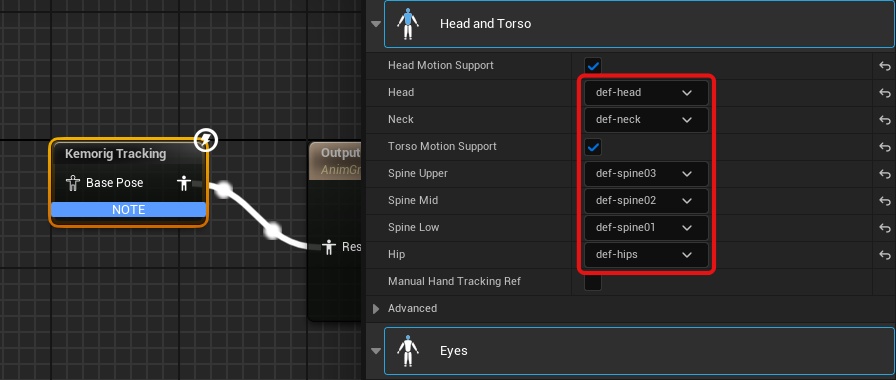
Auto-Detecting Bone Mappings
The New Avatar Tool auto-detects bone mappings when creating an Avatar, so you will find that mappings should already be set for you.
In addition, at the top of the Kemorig Tracking node’s details you will find a button to auto-detect bone mappings, which you can trigger again whenever you like.

Auto-detection isn't perfect -- always verify bone mappings to find and fix errors.
Tweaking Body Motion
You may want to tweak body motion, or change how your Avatar moves during different poses or animations. Motion Settings allow you to modify or enable/disable any aspect of body motion to get the look you want.
Body Motion Topics
For more information and tips on getting the best results, see pages on individual body motion topics:

Hand Tracking
How to set up hand and finger motion for your avatar