Making Materials
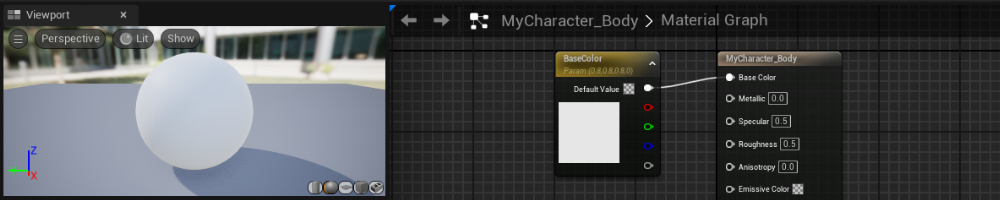
How to create materials in Unreal.
It's highly recommended to understand Materials and Material Instances when creating Avatars for kemorig.
Kemorig comes with example materials, which you can make instances of when creating content.
What is a Material?
You may already be familiar with a “texture”, which is an image file that get applied to the surface of a mesh.
A material is similar, but instead is an asset that uses custom logic (including textures) to apply color and surface properties to a model. A material decides not only what color a mesh is, but also how it responds to light.
In Unreal Engine, meshes cannot have textures applied directly – instead they must have materials applied.
Making a Simple Material
To make a material asset, right click inside the Content Browser and select Material.
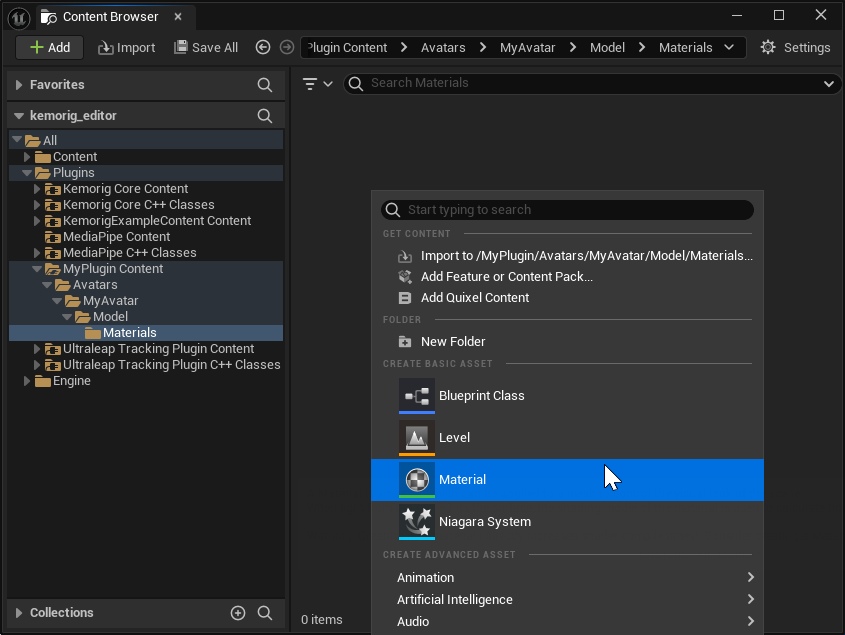
Double-click the asset you made to open the material editor.
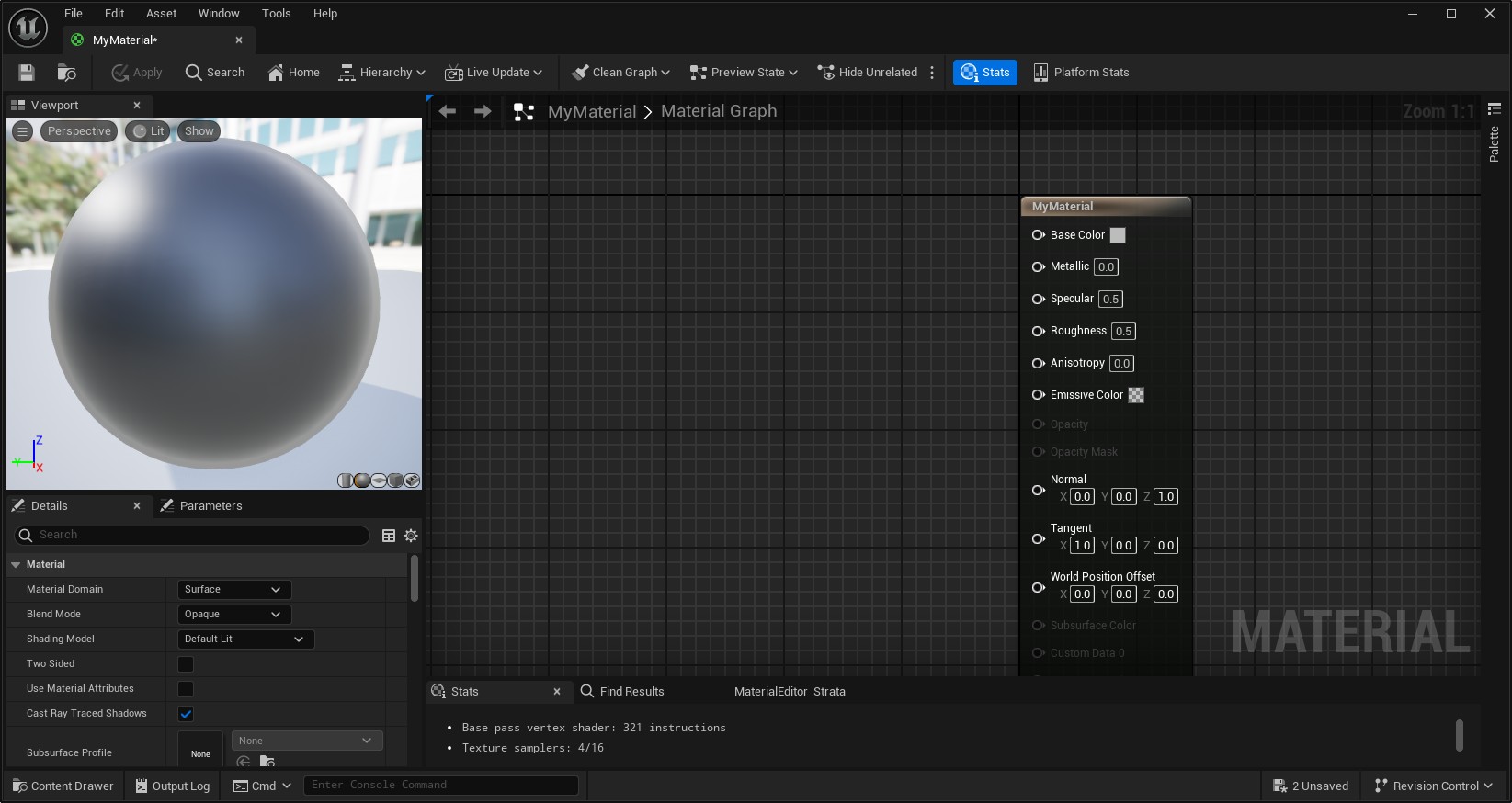
The node you see contains all the outputs of your material – you can create additional nodes and connect them to these outputs to change the look of the material.
Hook Up a Texture
Let’s say you have a texture for your model and want to hook it up. To do-so, drag the texture from the Content Browser into the material graph.
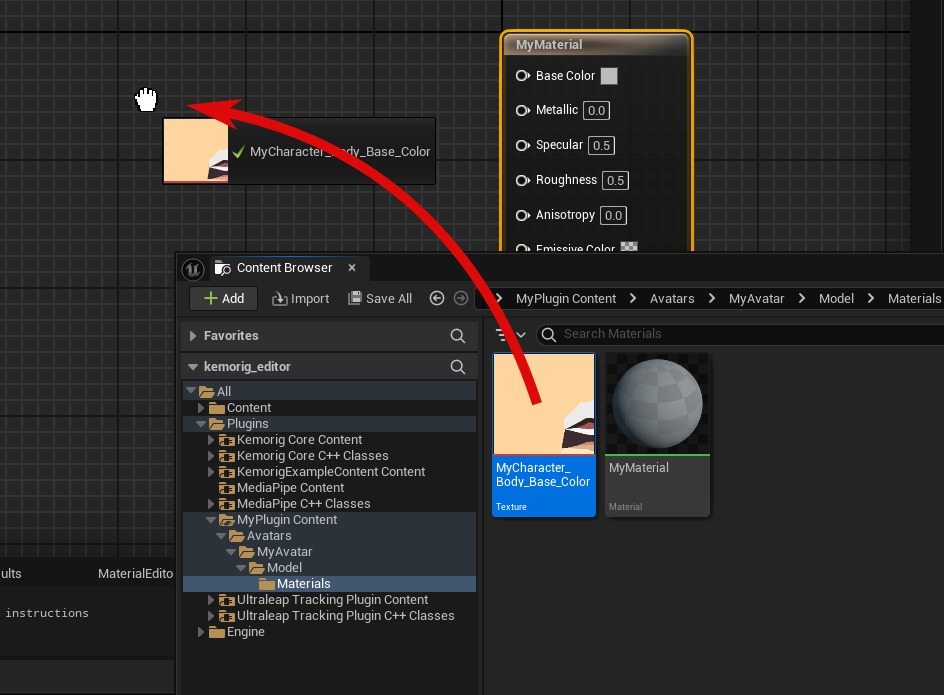
Then, hook the RGB pin from the Texture Sample to the Base Color output.
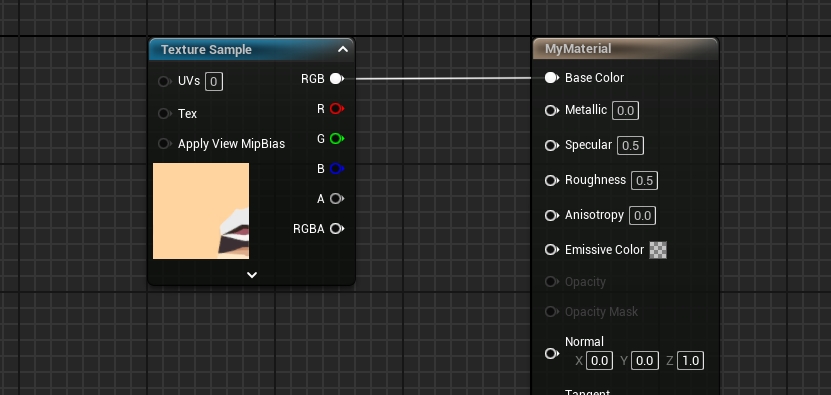
Save the material, and you now have a basic material using your texture.
Assigning Materials to Meshes
If you open a Static or Skeletal Mesh asset, you will see Material Slots in the Asset Details.
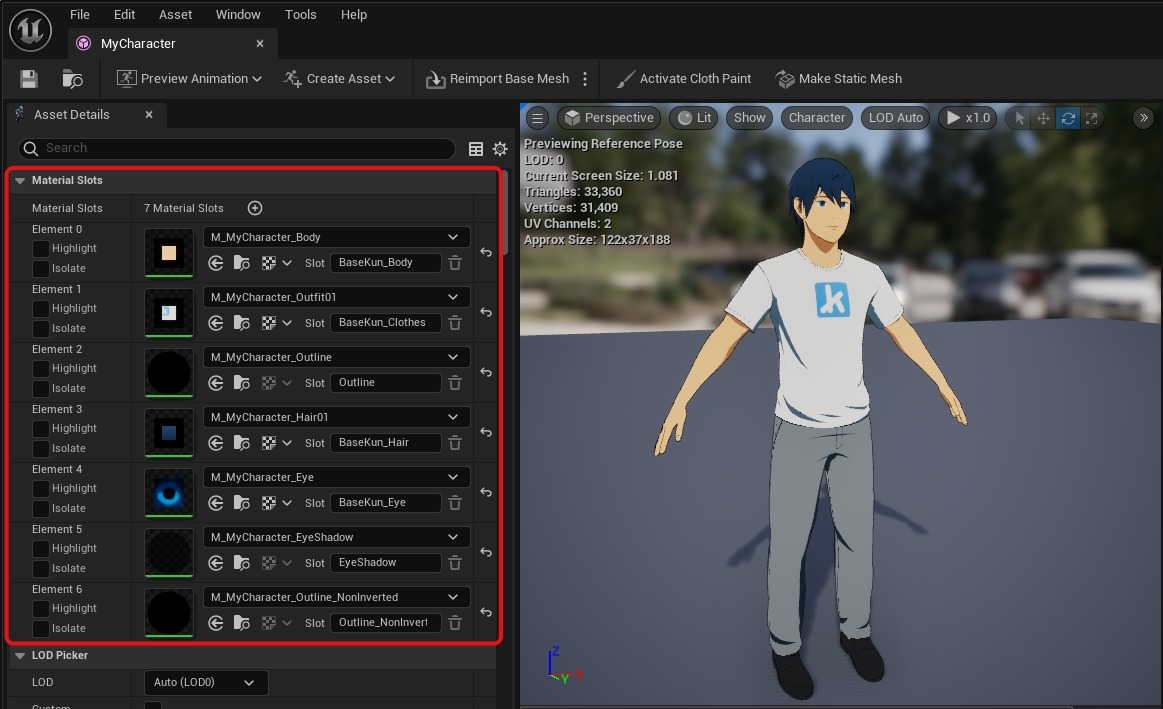
Each Material Slot requires 1 material. The number of slots depends on how many materials the model was authored to use.
To assign a material to a slot, drag the material from the Content Browser into one of the slots.
Material Instances
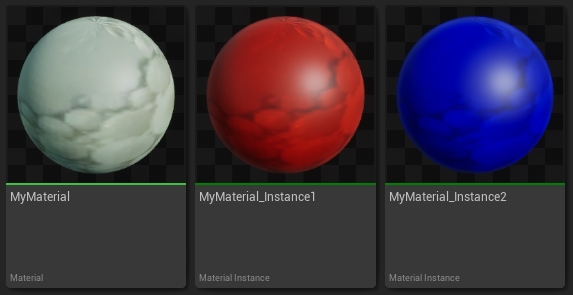
Material instances are an important topic to understand for re-using materials. A material instances is a version of an existing material that allows you to adjust parameters to create a different look.
For example, kemorig comes with example materials for toon shading. These are complicated materials with many adjustable parameters. By making material instances of them, you can quickly tweak them for your models, without having to worry about the complex logic underneith.
Creating Material Instances
To create a material instance, right click a material and select Create Material Instance
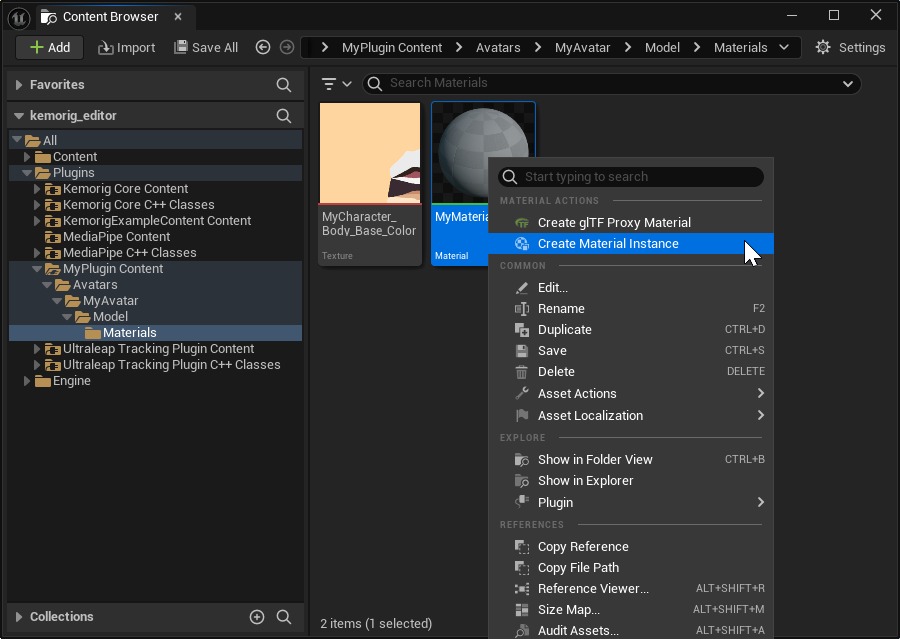
When you open a material instance, you’ll be able to adjust any parameter nodes that the parent material uses.
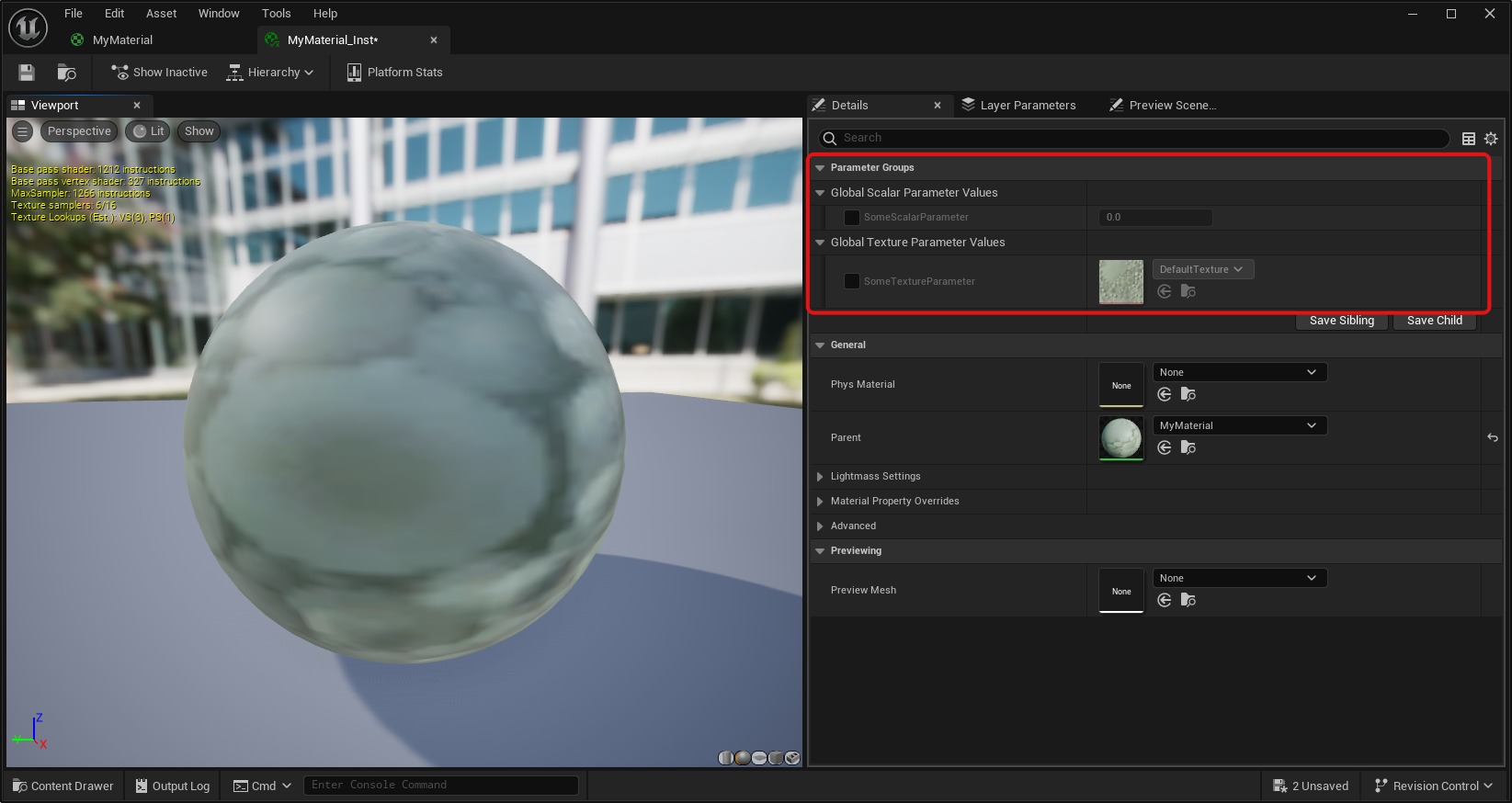
Adding Properties to Materials, to be Tweakable in Instances
If you want to create your own tweakable parameters in your materials (that you can tweak in instances), you do-so by creating parameter nodes.
Right click inside the material graph, and search for “parameter” to see various types of parameters you can create.
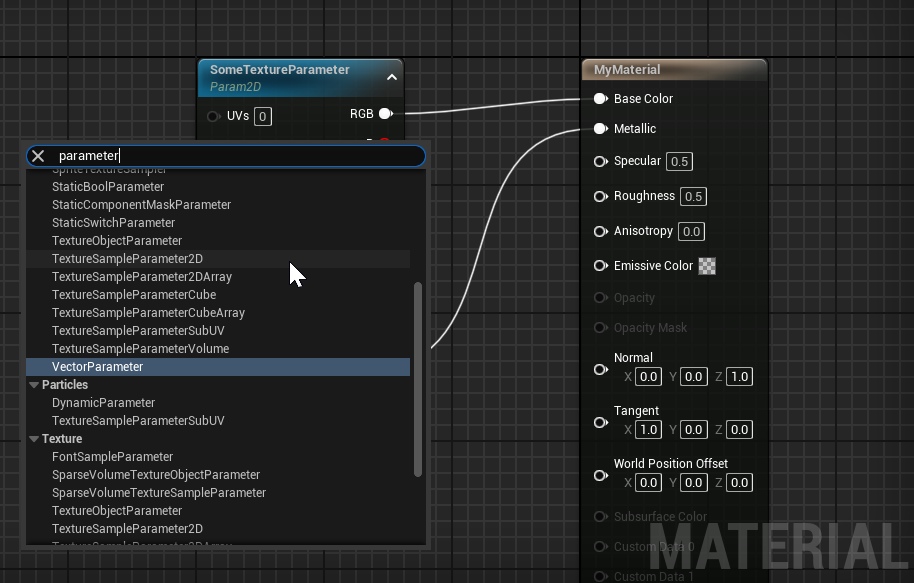
More Information About Materials
This page is only a brief primer on materials. For more information, see the official Unreal docs:

Materials
Unreal Engine Documentation