Leap Hand Tracking

Kemorig supports Leap Motion hand tracking.
Enabling Webcam Tracking
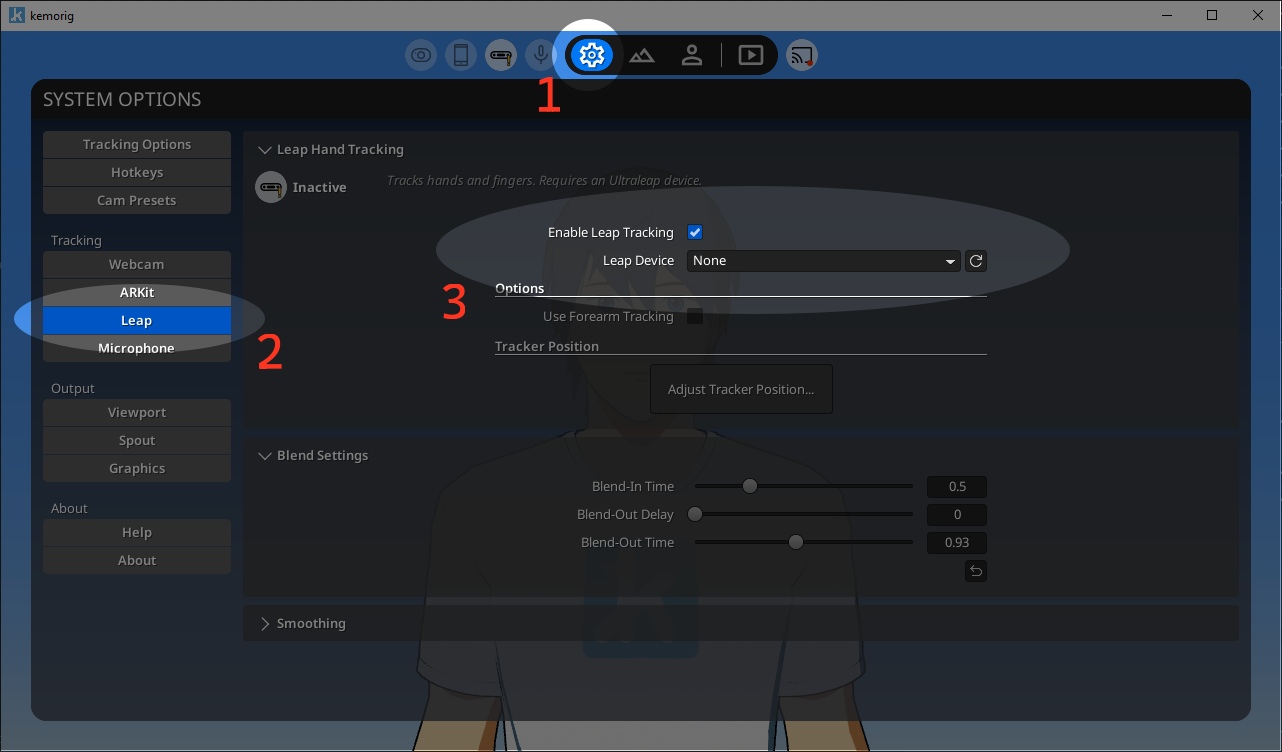
In kemorig, navigate to System Options > Leap.
To enable Leap hand tracking:
- Check the box for "Enable Leap Tracking".
- Then, select your device name in the Leap Device dropdown. You may have to click the refresh icon next to it to discover your device.
Leap Tracker Mode
Leap devices have 3 different Tracker Modes:
- Head / Chest - Attached to your head/chest facing forward (“Head Mounted” in Leap software)
- Desktop - Sitting on your desk pointing upward
- Screentop - Facing toward you (does not necessarily need to be above your screen, just facing you)
Depending on your room, different modes can perform better or worse. Experiment with your setup and see what works for you. The easiest mode to use is Desktop, as it does not require anything special to hold the Leap device.
Adjusting Tracker Position
When using the kemorig app (or when testing in-editor) you can access a menu to adjust the Leap tracker’s position.
This menu lets you set which mode kemorig thinks your Leap device is in, and allows you to move it to match your tracking environment.
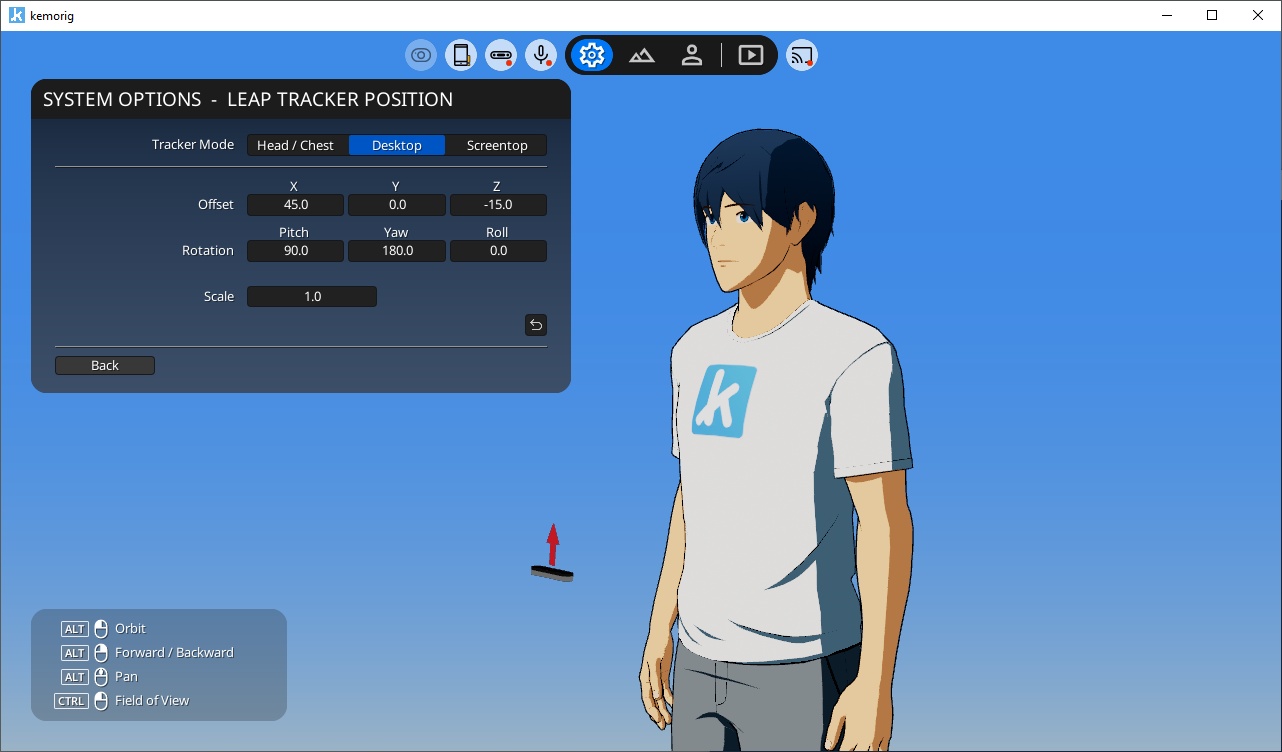
Adjust the offset and rotation until the virtual Leap device in front of your Avatar roughly matches where your real-life Leap tracker is relative to you.
Scale tells kemorig to treat your Leap tracking as larger or smaller, which can be useful if your Avatar is larger or smaller than you.
- Scaling the tracker up results in wider motion from your hands.
- Scaling the tracker down results in constrained motion from your hands, closer to the tracker position.
Tips for Best Results
Use the Ultraleap Control Panel
The Ultraleap Control Panel (which you will install when setting up your Leap device) gives you clear feedback when your hands and arms are seen by the tracker, and when they are not.
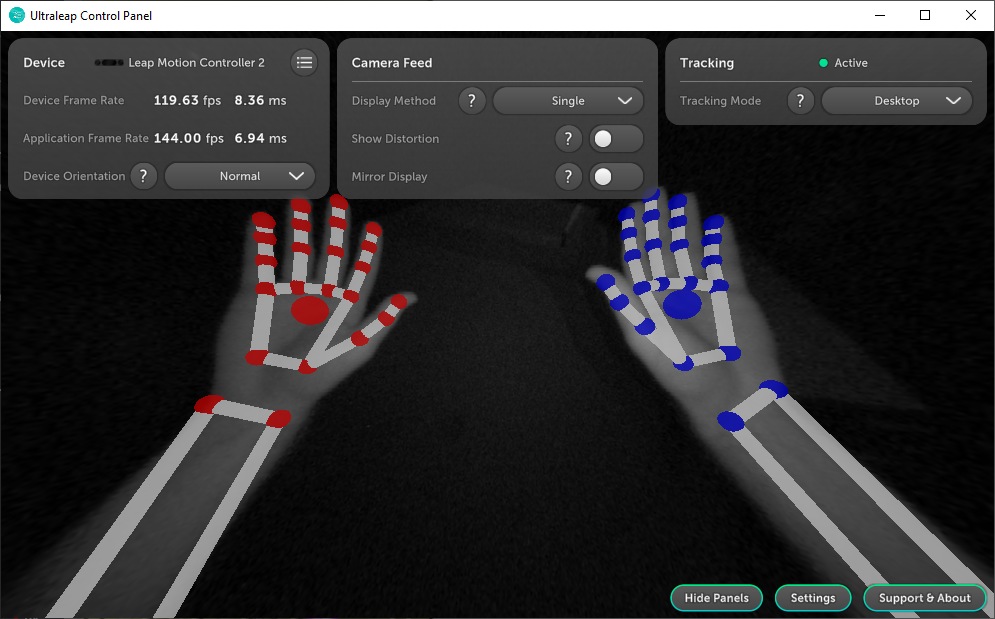
This is a very useful tool for testing what the best position for your tracker is.
When you see bad results in kemorig, try opening this Control Panel alongside it to see what the Leap device thinks it is seeing.
Avoid Objects Falsely-Identified as Hands
A very common issue with Leap devices is certain objects getting falsely-identified as hands.
This varies by tracking situations, but common examples include:
- Bottles
- Headphones
- Bundles of cables
- Certain shiny metal surfaces
Check the Ultraleap Control Panel when you see strange hand tracking results, to see if some object in your room is tricking the tracker. This can help you troubleshoot and avoid issues with your setup.