Avatar Interactions
How to set up Interactions for Avatars.
Interactions are actions that your Avatar can perform. Interactions can:
- Play animations on your Avatar
- Trigger arbitrary Blueprint script
- And more!
If you want to switch your Avatar between multiple states (such as different poses, expressions, or camera positions), consider using Stances instead.
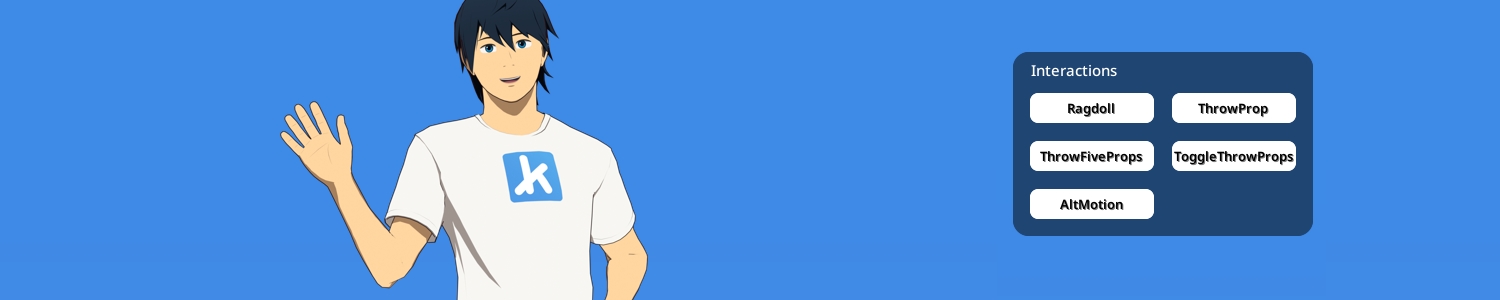
Interactions automatically get a button in the kemorig HUD, and can have hotkeys assigned to them.
Interactions Data Table
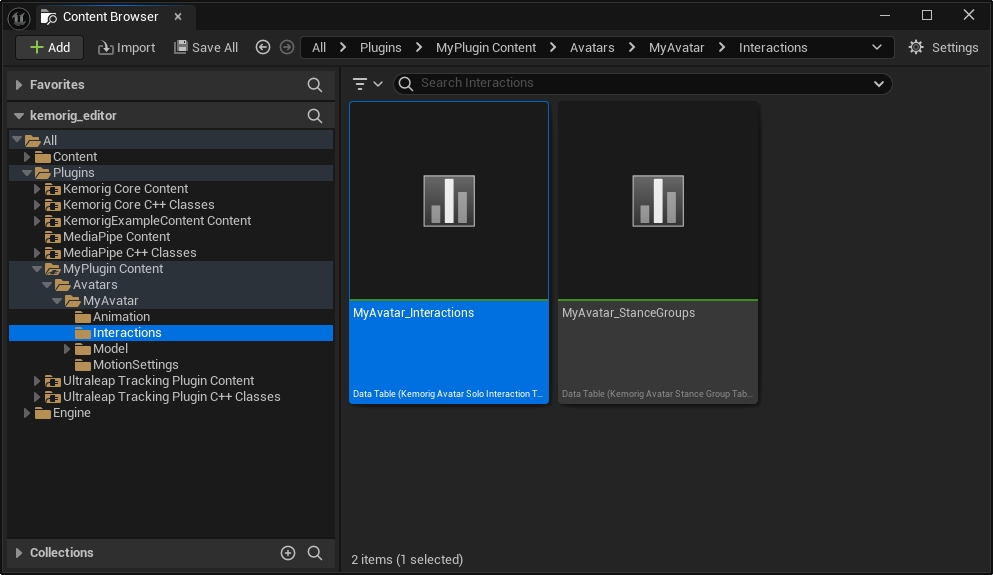
The New Avatar Tool automatically creates a Data Table asset for you to add Interactions to. It is found in the “Interactions” subfolder of your Avatar folder.
Adding New Interactions
Open your Interactions DataTable.
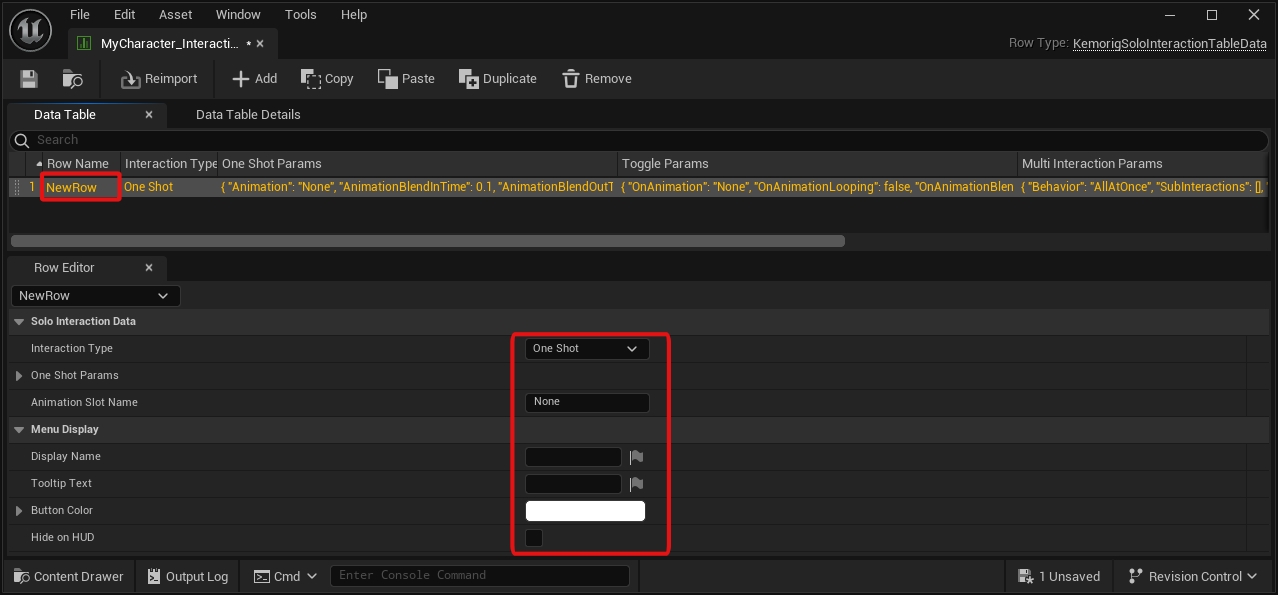
Click the Add button at the top to add a row.
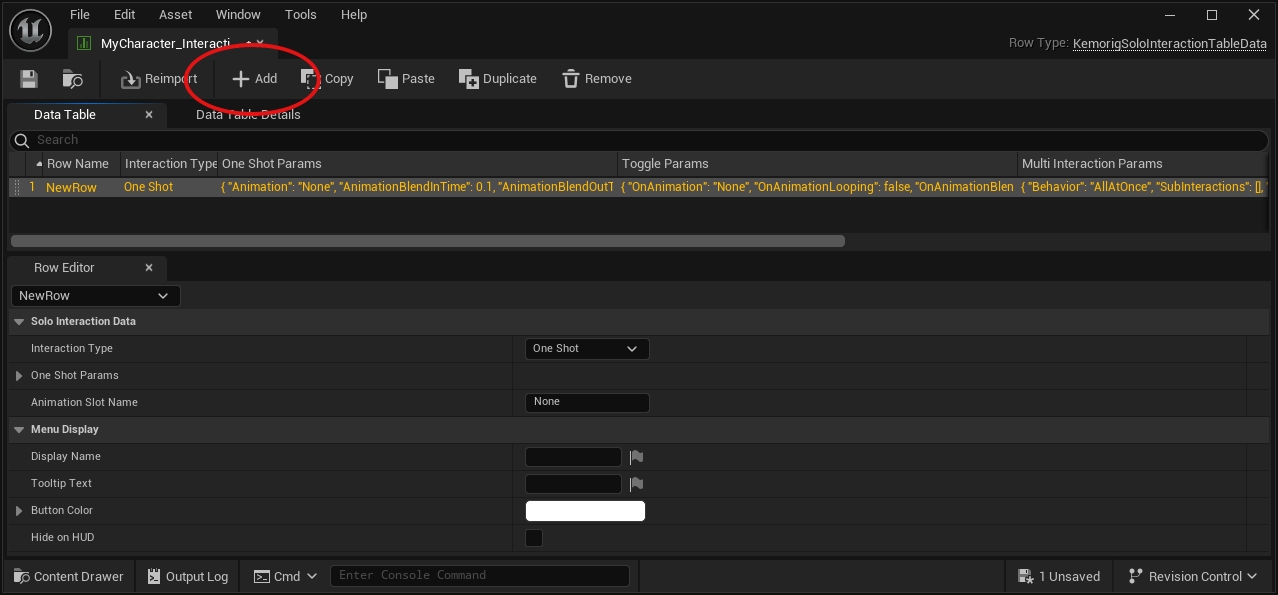
This row defines the Interaction:
- The Row Name is the name you’ll use to refer to the Interaction in Blueprints.
- The properties visible when you select the row define the Interaction’s behavior.
Interaction Types
Interactions can be one of 3 Types:
- One Shot - fire and forget, does the same thing every time it’s triggered.
- Toggle - has an on and off state.
- Multi Interaction - an Interaction that triggers other Interactions. Has these options:
- Random
- In Order
- All at Once
Built-In Features
Avatar Interactions have a few built-in features. These are controlled by filling out parameters in the DataTable.
Play Animations
One Shot and Toggle Interactions can play animations on your avatar.
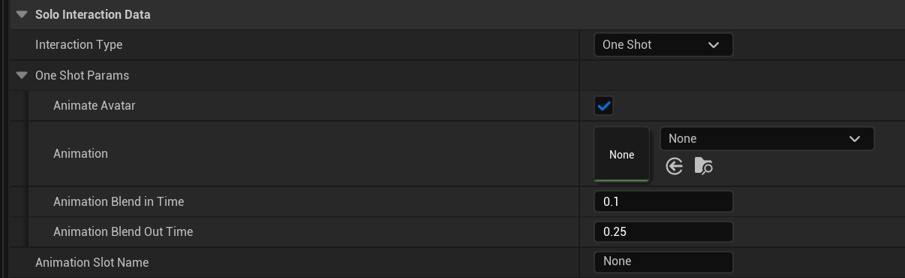
It does this using “Animation Slots”. For more information, see this page in Unreal’s documentation: Animation Slots
Be sure to use the Animation Slot Name property in the Interaction to designate what slot animations play in.
Toggle Bones
Toggle Interactions can toggle bones on your avatar mesh on or off.
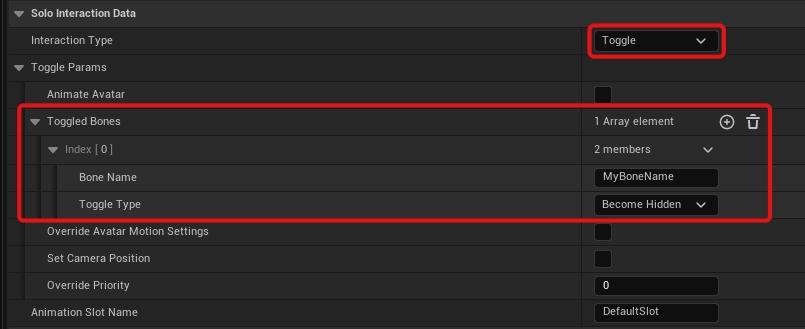
You can enter either a bone name or a socket name (if you’ve added sockets to your skeleton).
Override Motion Settings
Toggle Interactions can override an Avatar’s Motion Settings.
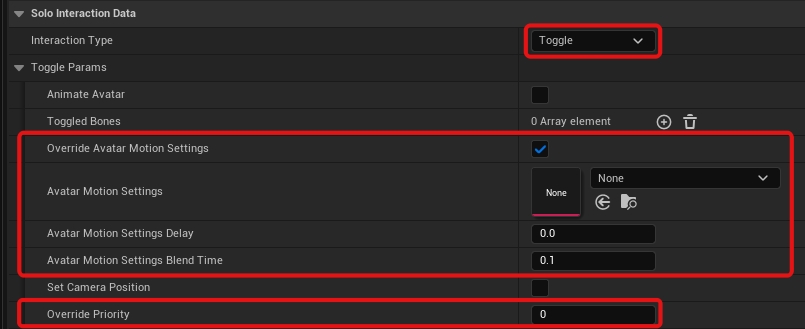
The Override Priority setting determines how the Motion Settings will stack with other overrides. See the Motion Settings documentation for more info.
Set Camera Position
Toggle Interactions can set the camera to a Camera Position.
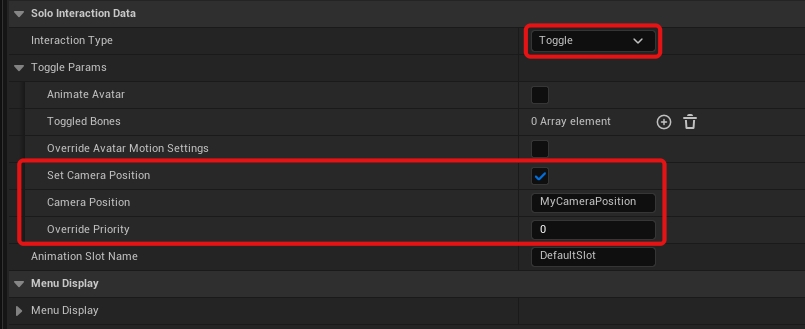
The Override Priority setting determines how this Camera Position will stack with others. See the Camera Positions documentation for more info.
Custom Blueprint Logic
Interactions allow you to run blueprint logic using events in any Blueprint (such as your Avatar Blueprint or Animation Blueprint).
This is where the power of the Interaction system shines! You can implement virtually any feature you want.
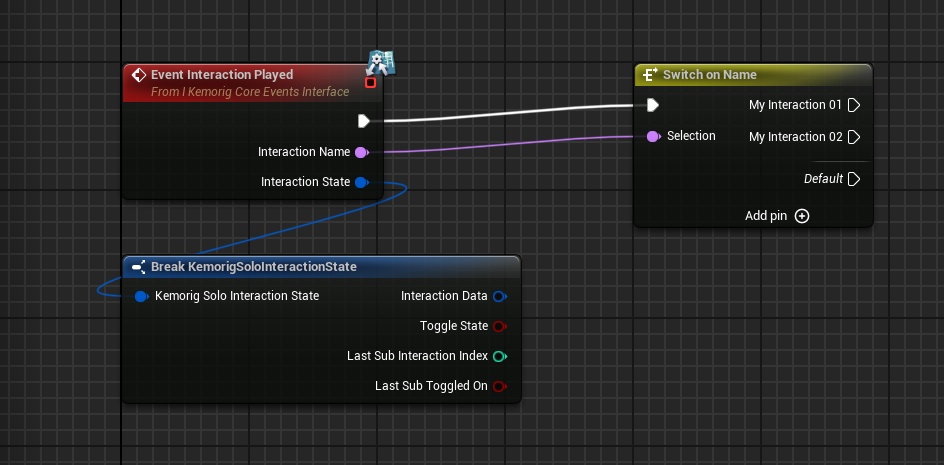
Using “Interaction Played” Event
Interaction Played is a core kemorig event called when any Interaction is played.
You can implement this event, and branch based on the Interaction Name it reports.
Using “Bind To Interaction”
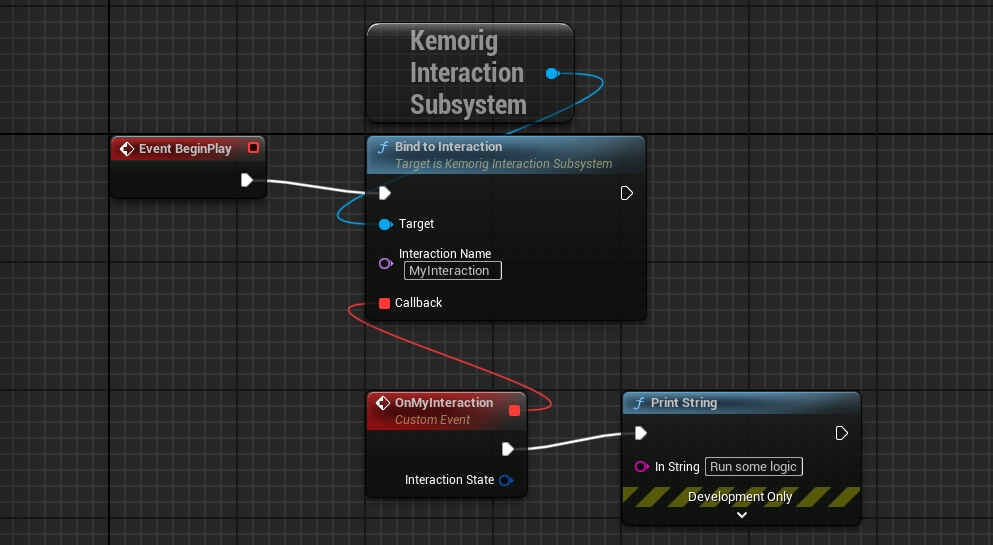
Alternatively, you can bind an event or function to a specific Interaction.
To do this:
- Add a Get Kemorig Interaction Subsystem node to your blueprint.
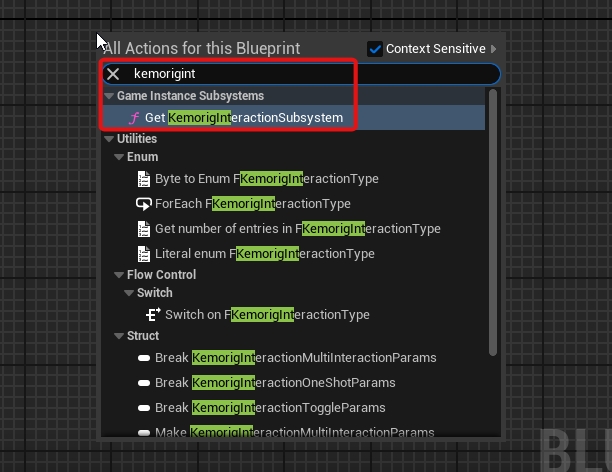
- Drag a pin out of it, and add a Bind to Interaction node.
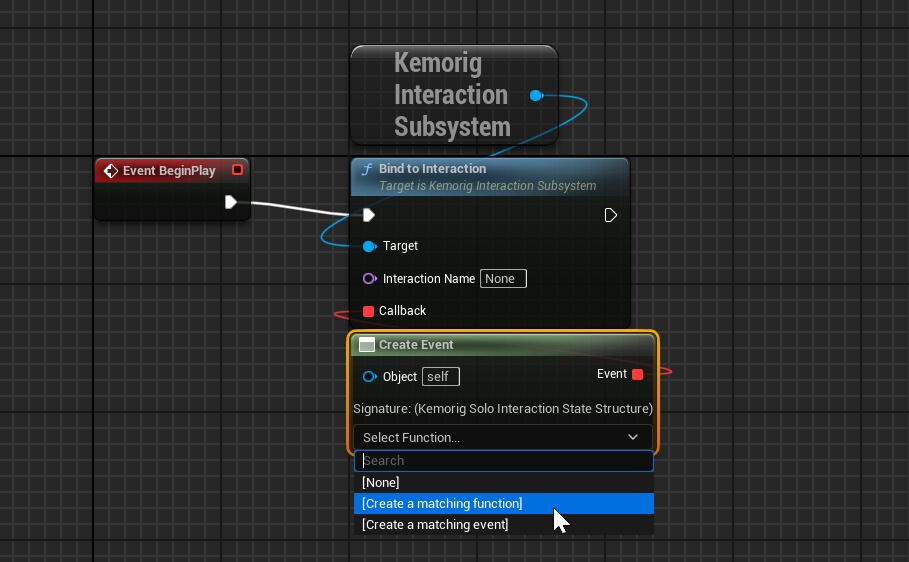
- Enter the name of the Interaction you want, and create a callback (the callback is where your logic goes).
Handling with a function
When binding to Interactions, a useful trick is to use the “Create Event” node. It allows you to handle the event with a function in your Blueprint.
With complex blueprints, this can be helpful for organization.
More
To explore what else can do:
- Drag the pin out of a Get Kemorig Interaction Subsystem node and search for “Kemorig Interactions” functions.