Upgrading an Older Avatar to v0.13+

v0.13 of kemorig introduces the New Avatar Tool, and changes how Facial Mappings are organized.
If you are moving an old Avatar into v0.13, follow these steps.
Delete Face Mappings Data Tables
Avatars no longer use Data Tables for Face Mappings. Delete these tables.
If you have advanced settings in these files, you may want to keep them around temporarily to help set them again in the new asset below
Create Facial Mappings Asset
Facial Mappings are now stored in a Facial Mappings data asset.
You can find a blank one to copy for your Avatar in the example content at:
KemorigExampleContent Content / Data / FacialMappings /
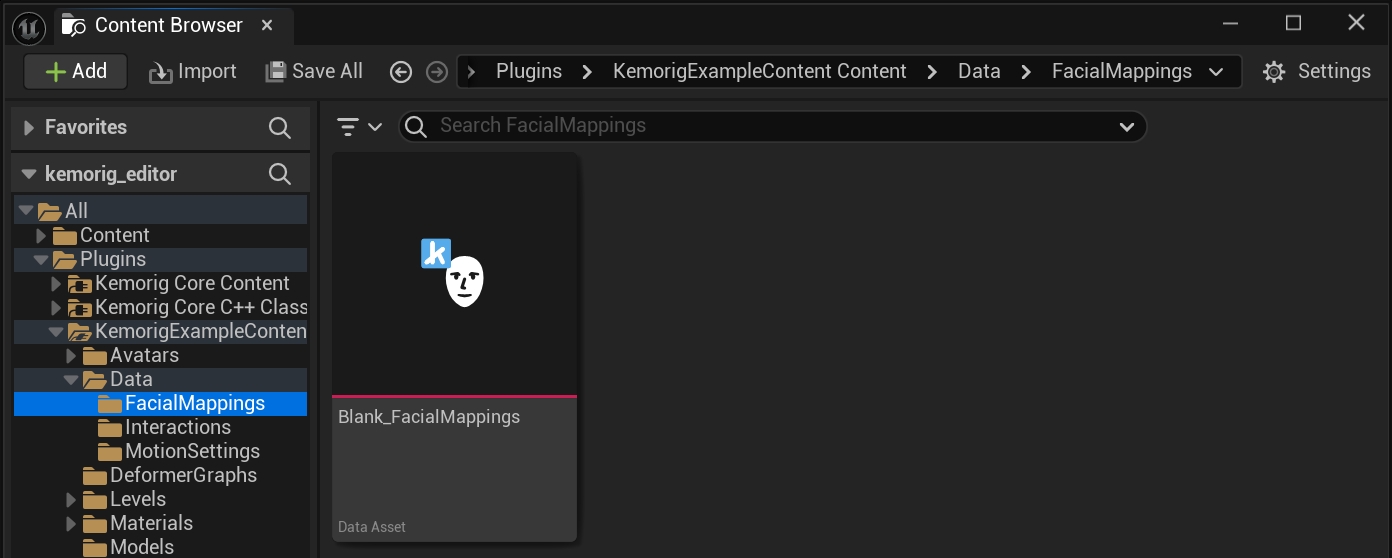
Make a copy of this file in your Avatar’s folder, and open it.
Auto-Detect Facial Mappings
Inside the Facial Mappings asset, enter your Avatar’s Skeletal Mesh, the click Auto Detect Morph Targets
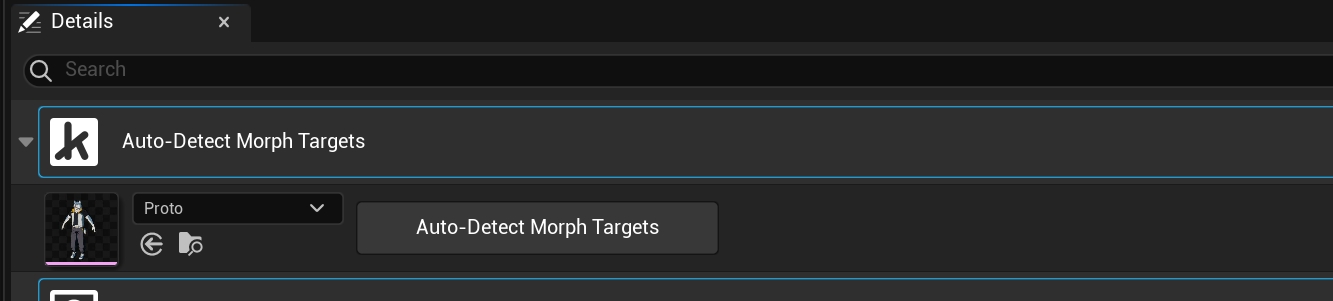
This will attempt to map morph targets automatically.
Double-check the mappings it creates for accuracy.
Hook Up in Avatar Blueprint
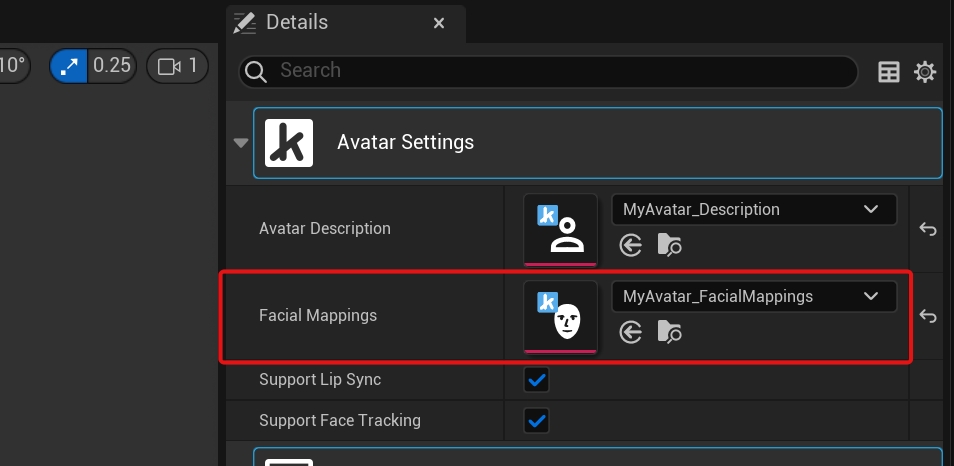
Finally, you need to hook up this new asset in your Avatar Blueprint.
Open your Avatar Blueprint, and set the Facial Mappings property to your new asset.