Level Camera Positions
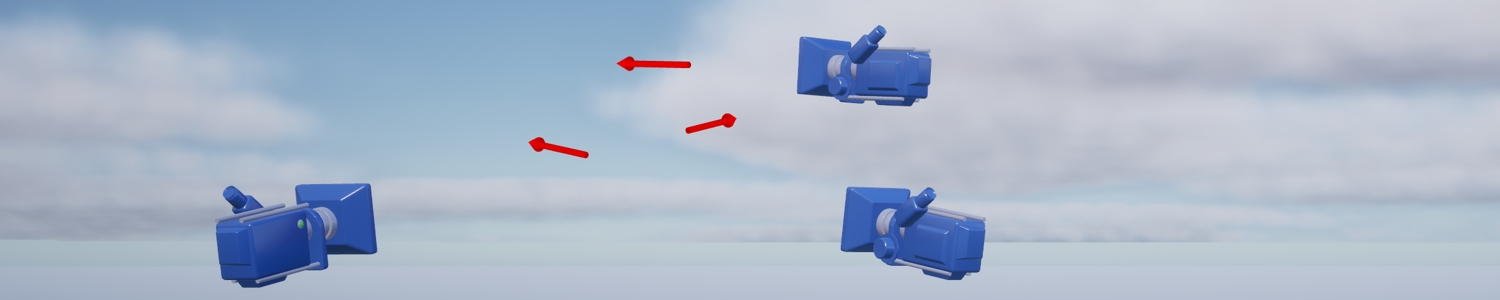
You can add Camera Positions to your Level, and create logic to move the camera with them.
Camera Positions can be placed in an Avatar, or in a Level.
Camera Positions can be triggered by Interactions, Stances, and Blueprints.
Camera Positions are a great tool to bring your Avatar to life. For example, you can make unique camera angles for each Stance your Avatar uses.
"Camera Positions" made in the editor are different from the "Camera Presets" set in the kemorig app. Camera Positions gives you more control, and allows you to smoothly transition the camera.
Adding a Camera Position
Add a Camera Position Actor to your Level.
In the Content Browser, navigate to Kemorig Core Content/LevelActors/ and find the Kemorig_CameraPosition class.
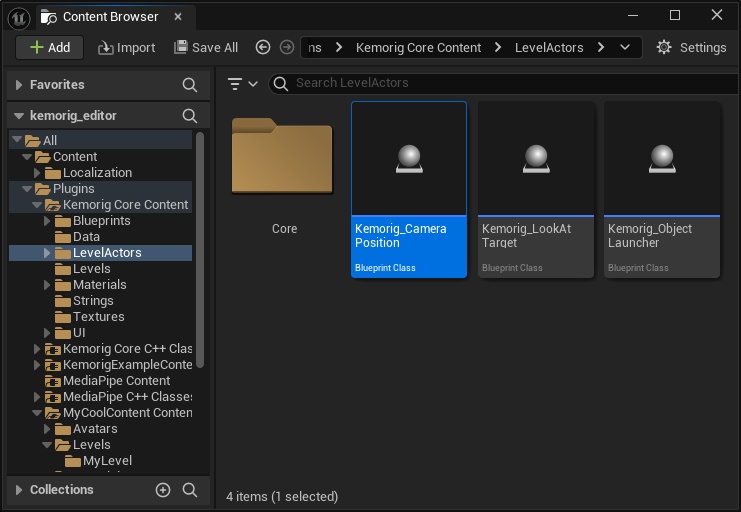
Drag Kemorig_CameraPosition into your level to create an instance of it. This is your new Camera Position.
With the actor selected, you will see a picture-in-picture preview of the camera in the corner of the viewport.
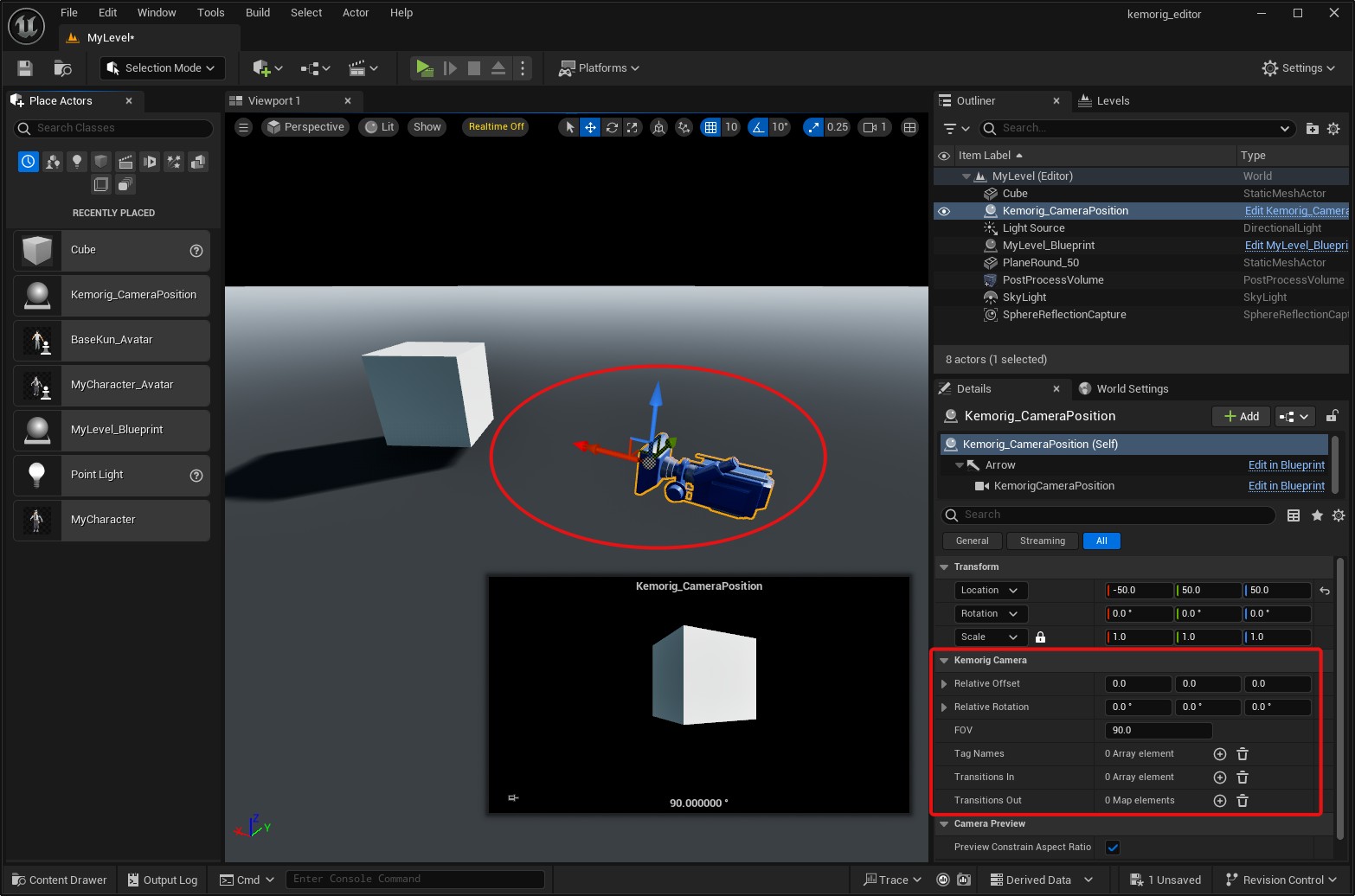
Configuring a Camera Position
Pivot and Relative Offset
A Camera Position consists of two elements:
- a Pivot
- a Relative Offset
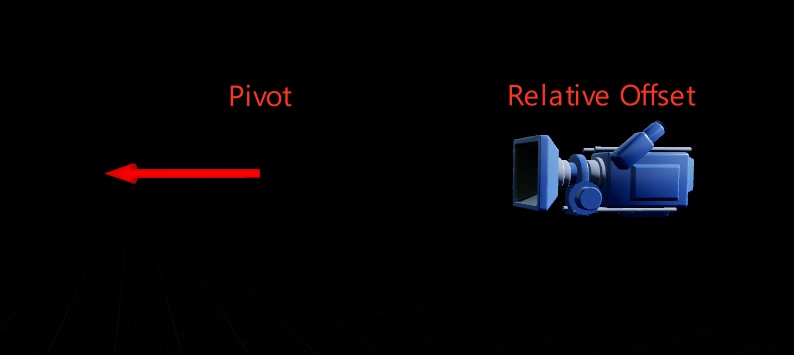
To position a Camera Position, do the following:
- In the Viewport, with the Camera Position selected, move the gizmo where you would like the Pivot to be.
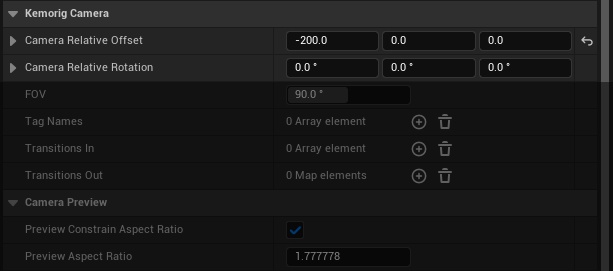
- In the Details panel, adjust the Relative Offset and Relative Rotation parameters. You will see the blue camera model move as you do.
Why Use a Relative Offset?
The Pivot / Relative Offset positioning matters when blending between positions.
If you script the camera to blend between multiple Camera Positions, you typically want your Avatar to stay in-frame during the transition. Keeping Pivot points at the Avatar will ensure that the camera will keep looking at the Avatar as it blends.
FOV
The FOV (or “field of view”) of the camera adjusts how zoomed-in it is.
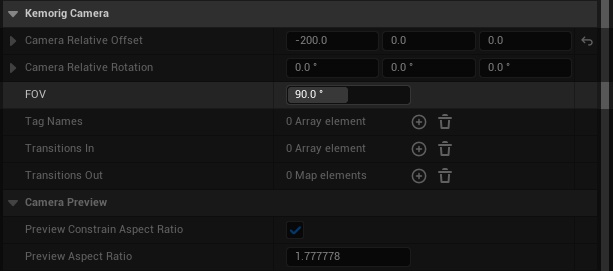
The picture-in-picture preview will update as you adjust the FOV.
Tag Names
Tag Names are how you refer to this Camera Position in Blueprints, as well as Interaction/Stance definitions, and Transitions.
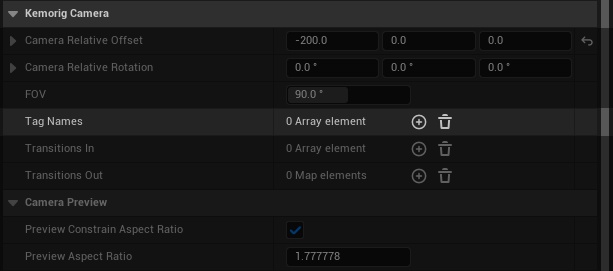
Typically you give a Camera Position just 1 tag name, but you can use multiple if you need to.
Transitions
Transitions are where you define smooth transitions between different Camera Positions.
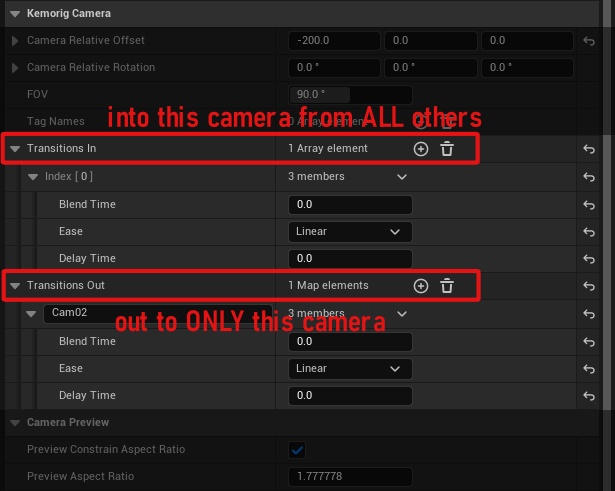
- Transitions In - these definitions are how ALL other positions will transition INTO this position.
- If more than one is defined, one will be chosen at random.
- Transitions Out - these definitions are how this position will transition OUT to SPECIFIC other positions.
- If more than one is defined for a given tag name, one will be chosen at random.
Using Camera Positions in Interactions and Stances
Camera Positions can be triggered by Interactions, Stances. See their pages to learn how.
You can also place Camera Positions in a Level, and trigger them with an Avatar.
This can be useful if you want to use a lot of Camera Positions with your Avatar, and prefer to place them in a Level instead of your Avatar Blueprint.
Using Camera Positions in Blueprint
Kemorig comes with a suite of function to use Camera Positions in Blueprints. To find them, right click in a Blueprint graph and search for “camera”.
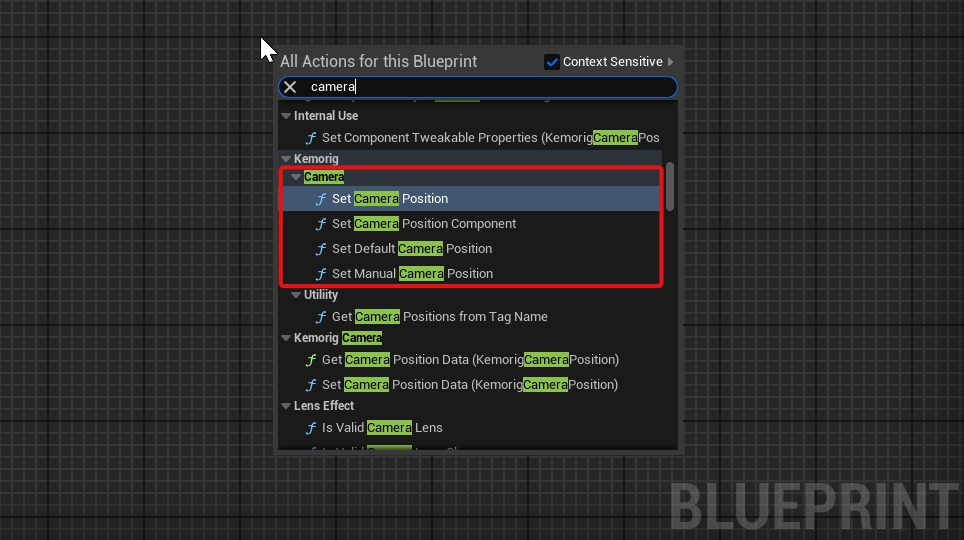
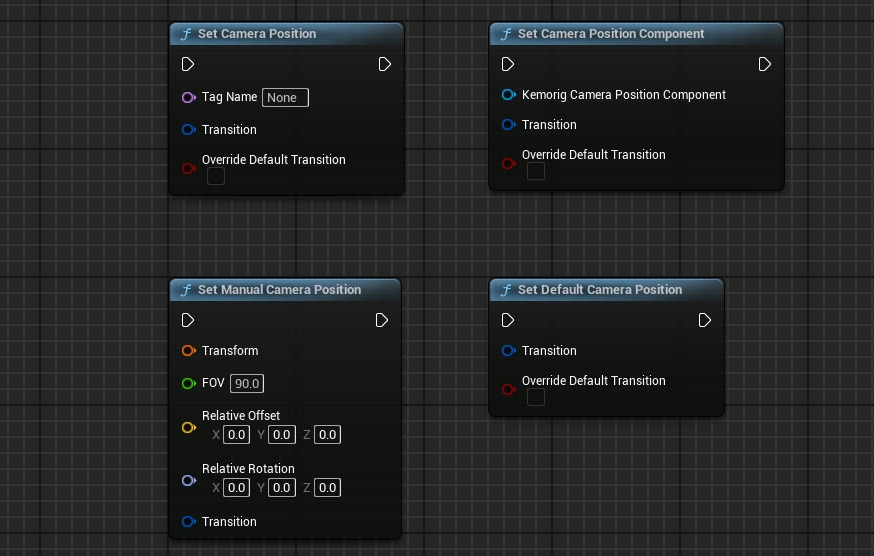
Blend the camera to the Camera Position with the given TagName
- Will use transitions defined on the Camera Positions
- Can optionally pass in a transition
- If OverrideDefaultTransition is false, then the Transition specified here will only be used if the Camera Position does not define a transition
- If OverrideDefaultTransition is true, then the Transition specified here will always be used
Same as SetCameraPosition, but pass in a Component directly (e.g. in an Avatar Blueprint)
Blend the camera to a manually-specified position
- Will use transitions defined on the Camera Positions
- Can optionally pass in a transition
Blend the camera to the Default Camera Position (as in, the default position when kemorig boots up)
- Can optionally pass in a transition
Level Blueprint Example
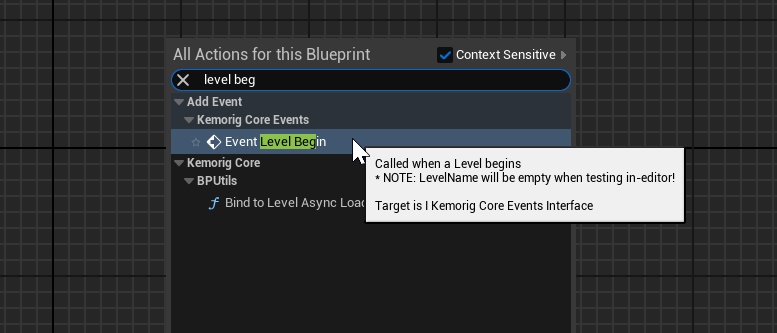
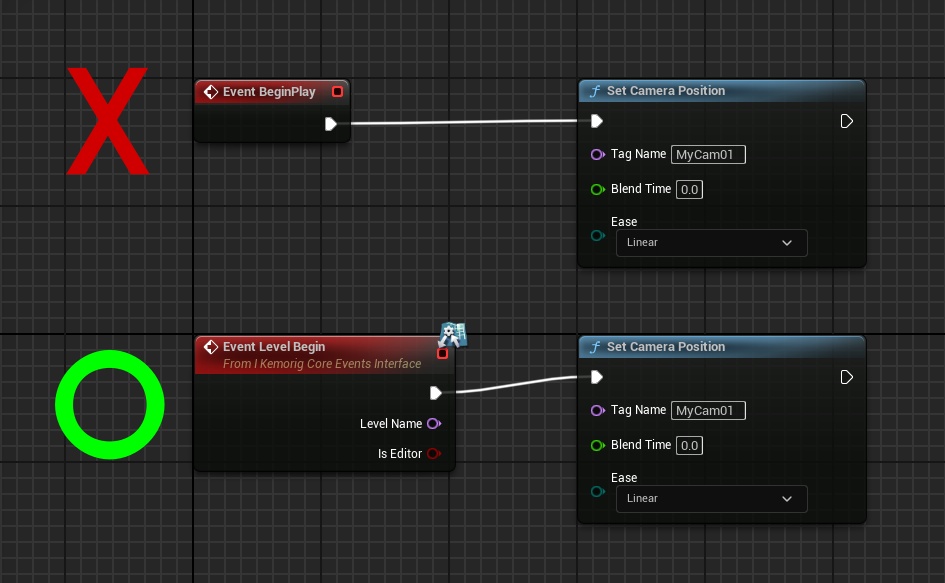
In a Level Blueprint, we can snap to a Camera Position when a level begins by calling it from Event Level Begin:
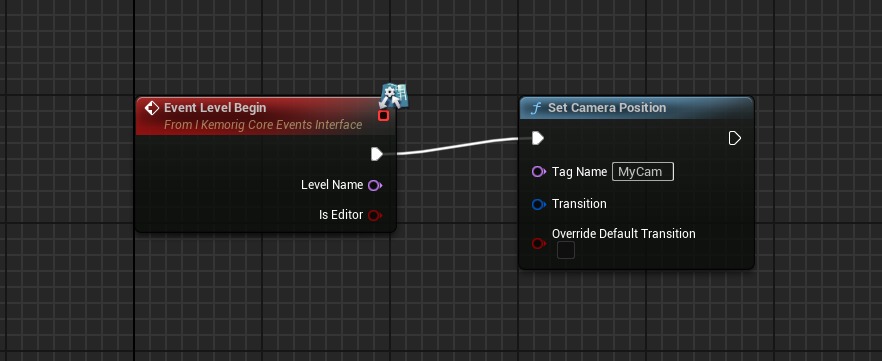
The Kemorig Day example level shows further examples of setting the Camera Position in response to a Stance changing.
Warning: In Level Blueprints, use Level Begin, not Begin Play
In Level Blueprints, do not set the camera using the default Begin Play event. This will not work!
The Level Begin event is specific to kemorig, and will run at the right time for camera logic to work.