Level Interactions
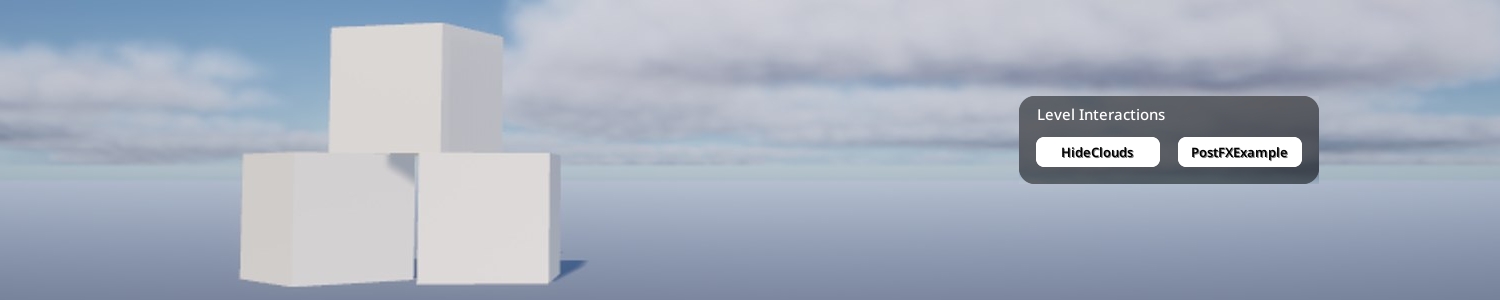
How to set up Interactions for Levels.
Interactions are actions that your Level can perform. They trigger events that you can implement in Blueprints to run arbitrary logic.
Interactions automatically get a button in the kemorig HUD, and can have hotkeys assigned to them.
Initial Setup
Your Level must have a Level Blueprint in order to implement Interactions.
Create a DataTable for Interactions
Level Interactions are defined in a DataTable with row struct KemorigLevelSoloInteractionTableData.
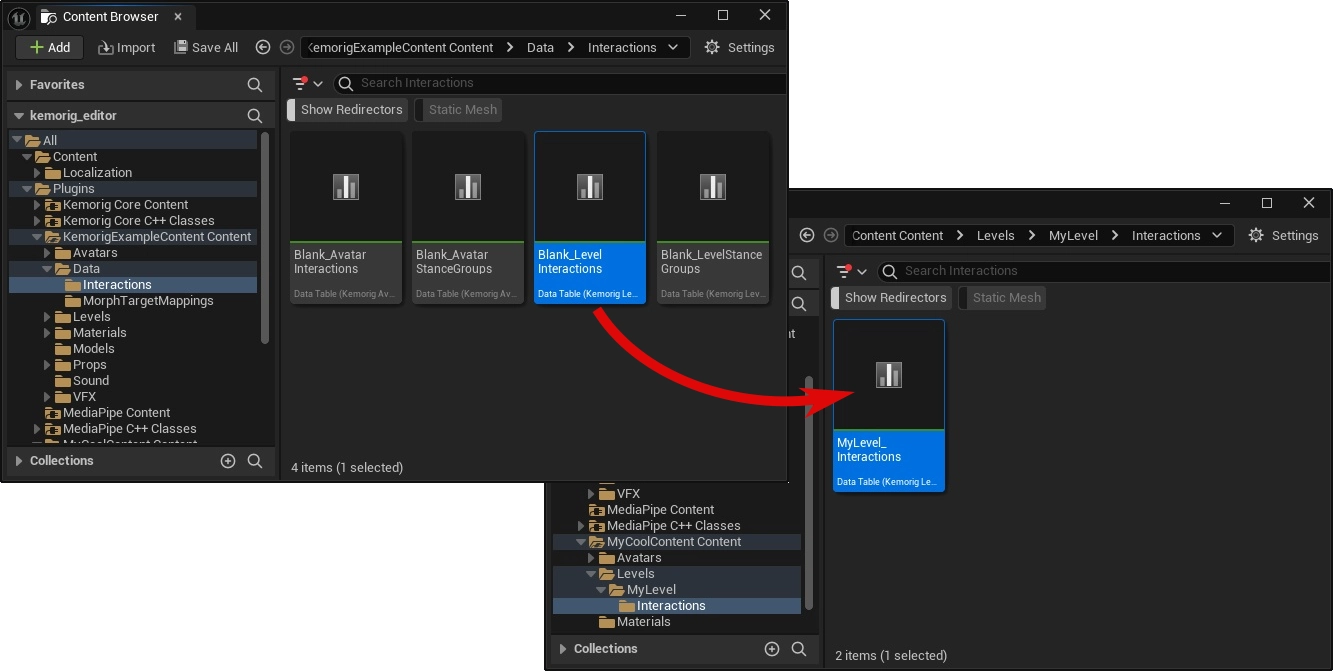
We could create a new one, but let’s copy a blank example included with the project:
- In the content browser, navigate to the folder KemorigExampleContent Content/Data/Interactions/
- Find Blank_LevelInteractions
- Copy/Paste a copy of this into our level folder (I like to use MyLevel/Interactions/) and rename it
Reference DataTable in Level Blueprint
Open your Level Blueprint and navigate to the Class Defaults.
In the Interactions category, reference your DataTable in the field Level Interactions.
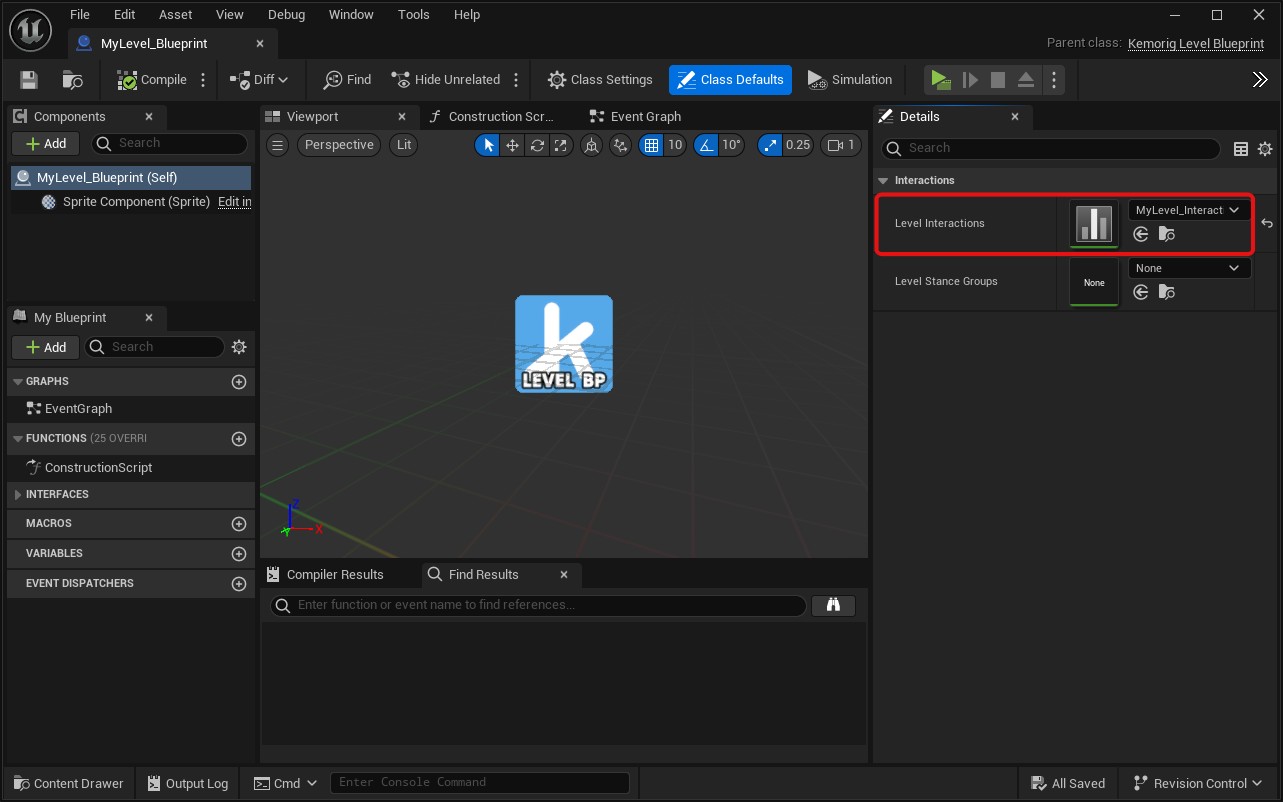
Now Interactions will work with the Level. Any rows we add in the DataTable will create a new Interaction we can use in kemorig.
Adding New Interactions
Open your Interactions DataTable.
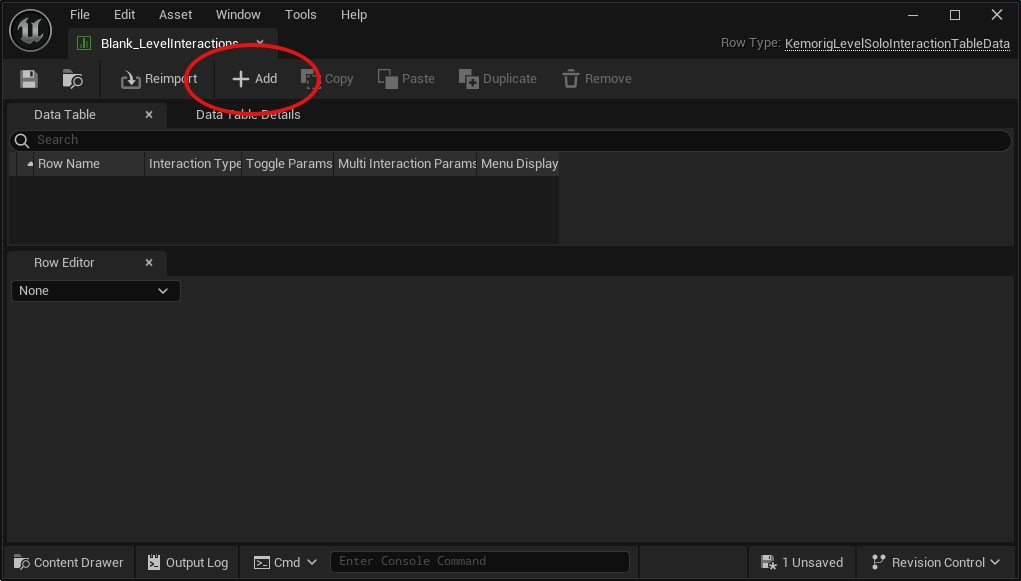
Click the Add button at the top to add a row.
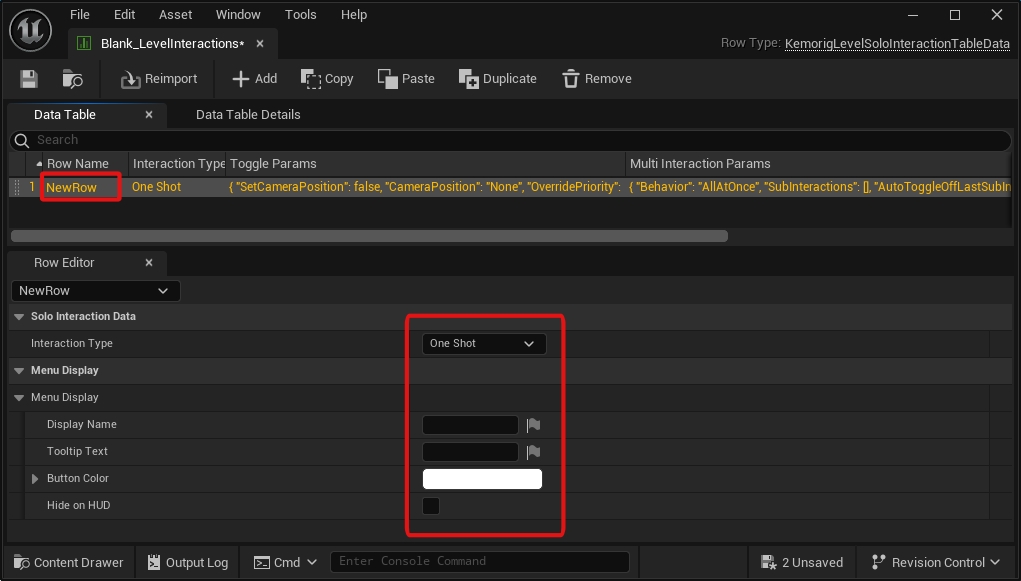
This row defines the Interaction:
- The Row Name is the name you’ll use to refer to the Interaction in Blueprints.
- The properties visible when you select the row define the Interaction’s behavior.
Interaction Types
Interactions can be one of 3 Types:
- One Shot - fire and forget, does the same thing every time it’s triggered.
- Toggle - has an on and off state.
- Multi Interaction - an Interaction that triggers other Interactions. Has these options:
- Random
- In Order
- All at Once
Custom Blueprint Logic
Interactions allow you to run blueprint logic using events in any Blueprint (such as your Avatar Blueprint or Animation Blueprint).
This is where the power of the Interaction system shines! You can implement virtually any feature you want.
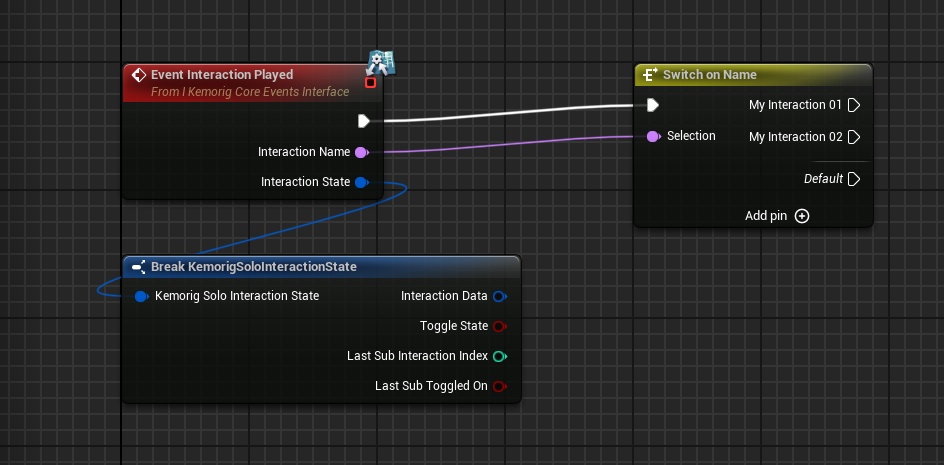
Using “Interaction Played” Event
Interaction Played is a core kemorig event called when any Interaction is played.
You can implement this event, and branch based on the Interaction Name it reports.
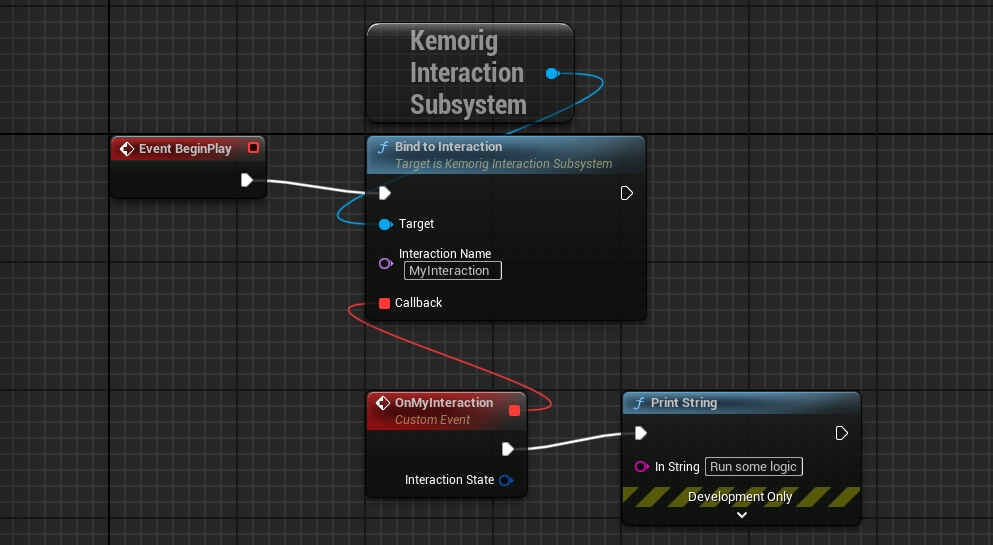
Using “Bind To Interaction”
Alternatively, you can bind an event or function to a specific Interaction.
To do this:
- Add a Get Kemorig Interaction Subsystem node to your blueprint.
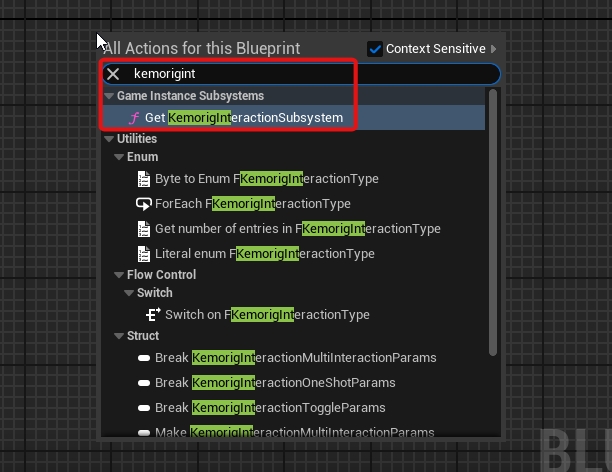
- Drag a pin out of it, and add a Bind to Interaction node.
- Enter the name of the Interaction you want, and create a callback (the callback is where your logic goes).
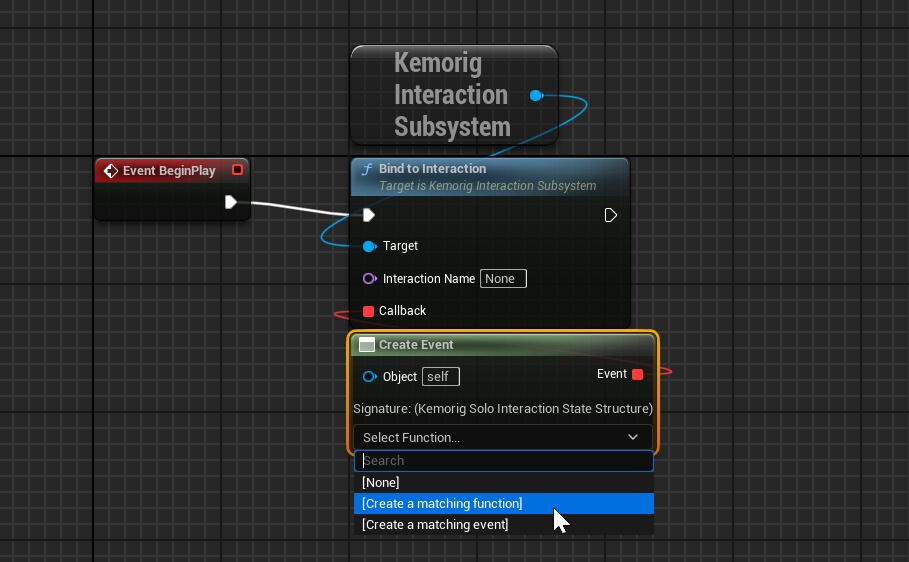
Handling with a function
When binding to Interactions, a useful trick is to use the “Create Event” node. It allows you to handle the event with a function in your Blueprint.
With complex blueprints, this can be helpful for organization.
More
To explore what else can do:
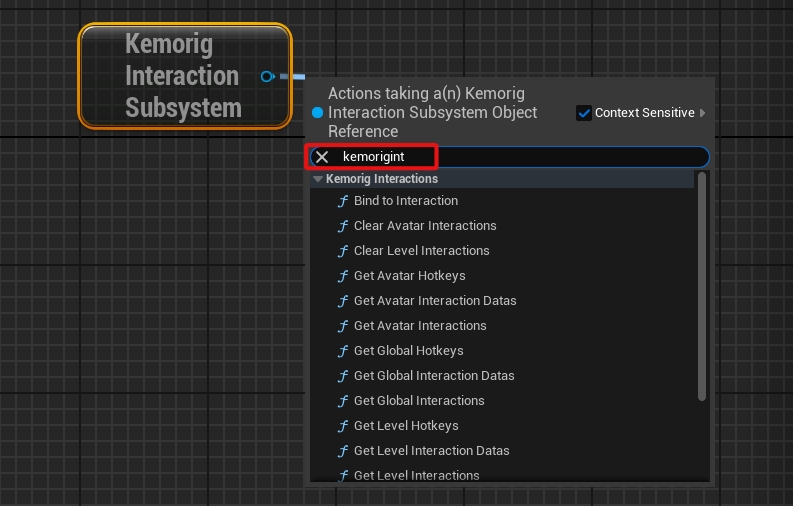
- Drag the pin out of a Get Kemorig Interaction Subsystem node and search for “Kemorig Interactions” functions.